You know the exact second it happens. The phone slips out of your hand, hits the floor with that flat, expensive-sounding crack, and your stomach drops with it. You pick it up, turn it over, and — relief — the glass isn't even cracked. Then you unlock it and the screen starts flickering. A faint pulse at first, then a strobe, then maybe a greenish wash across one corner, or lines that come and go when you tilt it. The phone still works, sort of. It just looks haunted.
Ask people who have been through it and the stories rhyme. A phone dropped from a kitchen counter that flickered for a day and then settled down on its own. One dropped onto concrete that flickered only at low brightness and was fine at full brightness. One that looked perfect for a week after the fall and then started flashing every time it got warm. And the unlucky ones: a phone with no visible damage at all whose screen went black in patches over the next few days, because the damage was inside, where the glass couldn't show it.
The frustrating part is that a flickering screen after a drop can mean three very different things — a software glitch shaken loose by the impact, a display cable that has worked its way partly out of its socket, or a damaged OLED panel — and the fix for each one is completely different in price. The good news is that you can usually tell them apart in about fifteen minutes, with tests that cost nothing, before you spend anything on a repair.
Short answer
After a drop, work through the flicker in this order: restart the phone, turn off adaptive brightness and set a fixed brightness, check for a software update, and test in Safe Mode (Android) or after removing recently installed apps (iPhone). If the flicker stops at full brightness, changes when you press gently on the screen edges, or only appears after the phone warms up, it is most likely hardware — a loose display connector or a damaged panel — and no setting will fix it permanently. If the flicker stops in Safe Mode, an app is the culprit; uninstall the most recent ones. Back up your photos and data before doing anything else, because a screen that flickers today can go black tomorrow, and a repair shop will charge you more if they also have to recover your data. If the glass is cracked, the screen is black in patches, or lines and discolouration are spreading, book a repair — the panel is damaged and it will not heal.
First, back up — before you touch anything else
This is the least satisfying step and the most important one. A flickering screen after a drop is a warning light, not a stable condition. The impact that loosened a connector or cracked an OLED layer can keep doing damage as the phone heats and cools, and a screen that flickers on Monday can be completely black by Thursday. Every story about a dead phone that took someone's photos with it starts with a screen that "was mostly working".
So before the restart, before the settings, before anything: plug the phone in, connect it to Wi-Fi, and start a backup. iCloud or Google backup, plus a manual copy of photos to a computer if you can. If the screen is hard to read, use voice commands or a computer to start it. If the touch is unreliable, back up over a cable rather than fighting the screen. Ten minutes now is the difference between a repair bill and a repair bill plus a data-recovery bill — and for most people, the photos are worth far more than the phone.
If the screen is already too far gone to navigate — black patches, no touch response — stop here and go to a repair shop with the phone as it is. Do not keep using it hoping it improves; heat and continued use make a damaged panel worse, not better.
The free tests, in order
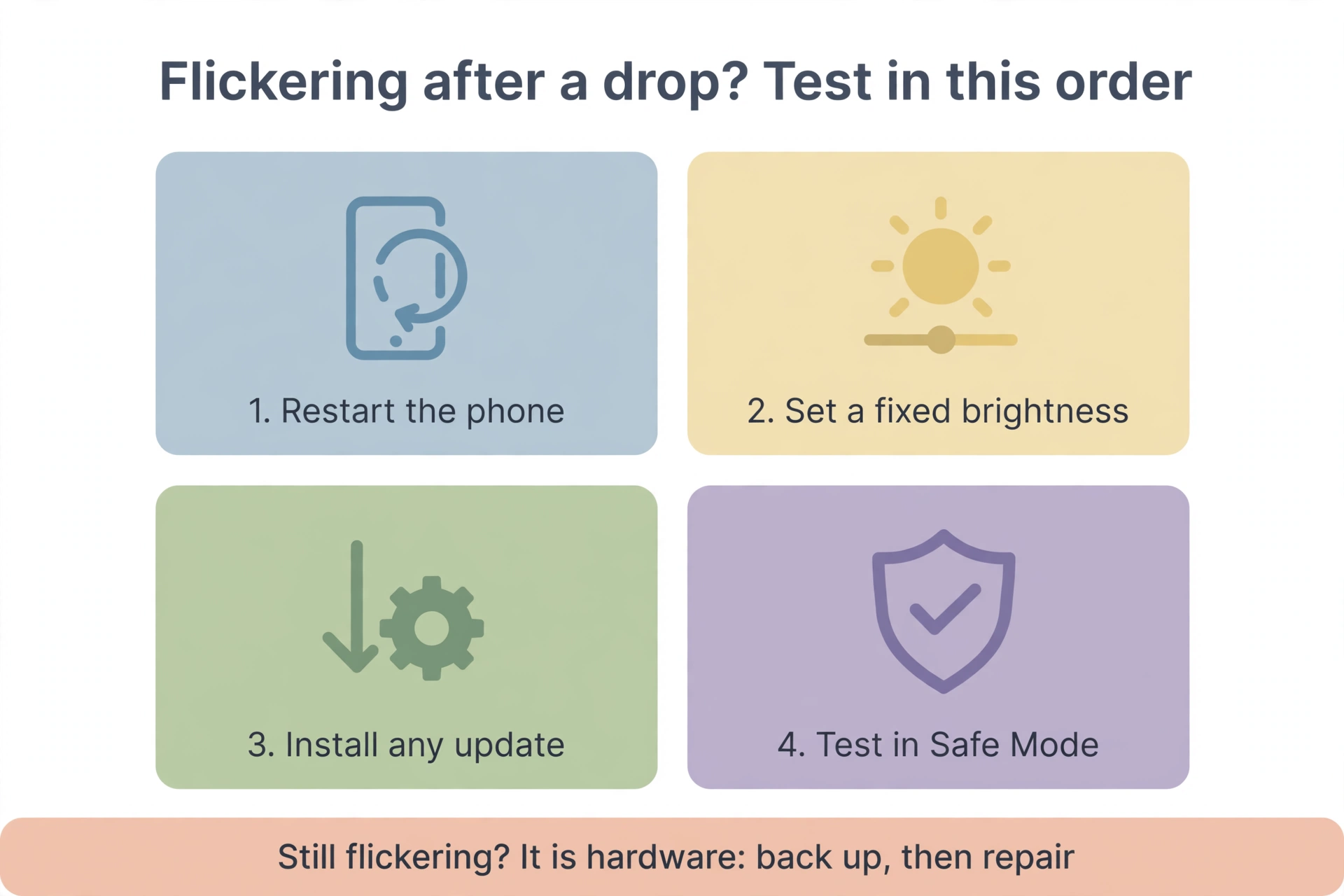
Do these one at a time, and check after each one whether the flicker is gone. The order matters: cheapest and most likely first, most disruptive last.
1. Restart the phone. Hold the power button (on most Android phones, power plus volume down for ten seconds) until it restarts. A drop can jolt the display driver into a bad state, and a restart reloads it cleanly. This fixes the flicker outright in a surprising number of cases — the impact shook the software, not the hardware. If the flicker is gone after the restart and doesn't come back over the next day, you were lucky. Done.
2. Turn off adaptive brightness and set a fixed level. Go to Settings, then Display, and switch off adaptive brightness (iPhone: Settings, Accessibility, Display & Text Size, Auto-Brightness off). Then set the brightness manually to around 80 percent. This test tells you a lot: flickering that only happens at low brightness and vanishes at high brightness is a classic sign of a damaged OLED panel or a failing backlight circuit, because low brightness is where the display driver works hardest. If the flicker stops at full brightness but returns when you dim the screen, the panel is almost certainly damaged — note it down and skip to the repair section. If turning off adaptive brightness fixes it entirely, the impact probably knocked a sensor reading out of calibration, and a fixed brightness is a perfectly good workaround while you decide about a repair.
3. Check for a software update. Settings, then Software Update (iPhone: General, Software Update). Phone makers regularly ship display-driver fixes, and a drop that coincides with a pending update can make a software bug look like impact damage. Install anything available, restart again, and re-test.
4. Test in Safe Mode (Android) or remove recent apps (iPhone). On Android, hold the power button, then long-press "Power off" until the Safe Mode prompt appears. In Safe Mode only the phone's own software runs — if the flicker stops, a downloaded app is causing it, usually one installed or updated recently. Restart normally and uninstall the newest apps one by one until the flicker stays away. On iPhone there is no Safe Mode; instead, delete the most recently installed or updated apps, particularly any that overlay the screen, change the display, or run in the background constantly. A flicker that survives Safe Mode is not an app problem — it is the system or the hardware.
5. Remove the case and screen protector. A drop can shift a case or crack a screen protector in a way that presses on the screen edge, and a cheap tempered-glass protector with an air bubble over the sensor area can confuse the brightness sensor. Take both off, clean the screen with a microfibre cloth, and test again. This takes two minutes and has fixed more "broken" screens than anyone wants to admit — including the case where the protector itself was cracked and the phone underneath was fine.
How to tell hardware from software
After the free tests, you should have one of three answers. Here's how to read them.
- Flicker stops after restart / update / Safe Mode — software glitch or bad app. Fixed — keep an eye on it for a day.
- Flicker only at low brightness, gone at full brightness — damaged OLED panel or backlight. Repair needed; use full brightness meanwhile.
- Flicker changes when you press the screen edges or flex the phone gently — loose display connector. Repair needed; back up now, handle gently.
- Fixed lines, black patches, green/purple discolouration, spreading blotches — cracked OLED layer. Repair needed; stop using it for anything important.
- Flicker starts after the phone warms up, worse when hot — damaged panel or battery swelling. Repair urgently; swelling battery is a safety issue.
- Screen flickers and touch is dead in places — damaged digitizer (touch layer). Repair needed; the whole screen assembly usually goes together.
The press test deserves a little care: hold the phone firmly and press gently — gently — along the edges of the screen, especially near the top where the display cable connects. If the flicker changes, clears, or gets worse as you press, the display connector has worked loose in the drop. Don't press hard, don't bend the phone, and don't try to open it yourself to reseat the cable unless you know what you're doing: modern phones are glued shut, opening one kills the water resistance, and a slipped pry tool turns a loose cable into a broken one. The press test is for diagnosis, not repair.
Heat is the other tell. A phone that flickers only once it warms up — after ten minutes of video, or on a hot day — has a connection or a panel that expands with heat and breaks contact. That pattern almost always gets worse, not better, and it is the pattern most likely to end in a black screen. Back up first, repair second.
One more thing to check while you're diagnosing: the battery. A drop can damage a battery, and a swollen battery presses on the screen from inside — flickering, a screen that looks like it's lifting at the edges, or a back panel that no longer sits flat are all warning signs. If the phone's back is bulging or the screen is separating from the frame, stop charging it, stop using it, and take it to a repair shop the same day. A swollen battery is a fire risk, not a cosmetic problem. This is the same instinct as with any phone that starts behaving strangely after a knock — a phone that overheats while charging in the car is telling you something is wrong inside, and a flickering screen after a drop is the same kind of message.
What a repair actually costs, and what's worth it
If the tests point to hardware, the question becomes money, and the honest answer depends on the phone.
For iPhones, Apple will quote a screen replacement, and the price depends on the model — newer Pro models cost substantially more than older ones. Apple's own page explains what a screen repair covers and when a full replacement is the outcome instead: iPhone screen repair from Apple. If the phone is under AppleCare+, the repair is a fraction of the out-of-warranty price, so check your coverage before you pay anything — people forget they have it more often than you'd think. If the phone is old enough that a screen costs more than half what the phone is worth second-hand, the rational move is usually to back up, sell it for parts, and replace the phone — and if you're buying the replacement second-hand, the screen is exactly the thing to inspect hardest. How to check if a used iPhone is stolen or blacklisted covers the checks to run before you hand over money, and the screen inspection in it — dead pixels, discolouration, flicker at low brightness — is the same test you'd run on your own damaged phone.
For Android phones, Samsung's authorised service centres and reputable independent shops can replace the display assembly — screen and digitizer together, since they come as one unit on most models. A loose connector reseat is a cheap job if the panel itself is intact, often under an hour; a full OLED panel replacement is the expensive one. Get a quote that separates the two: a shop that quotes panel replacement before checking the connector is a shop to be careful with. And if the phone is still under warranty and there is no visible crack or dent, say so — a flicker with no external damage is sometimes covered, while a flicker with a cracked corner almost never is.
What not to do: don't buy the cheapest screen on a marketplace and fit it yourself on a phone you care about, unless you have done it before. Aftermarket screens vary wildly in quality — dimmer, worse colours, touch that misses — and a bad fitting can damage the battery or the motherboard, turning a screen repair into a dead phone. The one exception is a phone you were about to replace anyway, where a cheap screen buys it six more months. For a daily phone, pay for a proper panel.
Preventing the next one
A flickering screen is a repair bill, but it's also a lesson about the case. Most drops that damage a screen happen from waist height onto a hard floor — the exact drop a good case and a tempered-glass protector are designed for. A case with raised edges around the screen, so the glass never touches the floor when it lands face-down, is worth more than any amount of careful handling. A screen protector is a consumable: if it cracks, replace it, because a cracked protector no longer spreads the impact — and the next drop goes straight through to the real screen.
Two small habits help more than they sound like they should. Don't carry the phone in the same pocket as keys or coins — a drop isn't the only way a screen gets damaged, and a deep scratch is a weak point the next drop will find. And if you use a magnetic car mount, check it holds: phones slide off mounts more often than people admit, and a phone that falls from a dashboard vent onto a car floor is a phone that lands on its corner, which is the worst angle for the display cable.
Frequently asked questions
My screen only flickers sometimes. Can I just ignore it?
For a while, maybe — but back up first, today. Intermittent flicker after a drop means something inside is marginal: a connector that's half-seated or a panel with a hairline crack in the OLED layer. It tends to get worse with heat and time, and it can go from flicker to black without much warning. Ignoring it is fine; ignoring it without a backup is not.
The glass isn't cracked. Can the screen still be broken?
Yes, and this is the most common surprise after a drop. The glass and the display panel underneath are separate layers. The glass can survive while the OLED panel beneath it cracks, or the flexible cable connecting the screen to the motherboard works loose. No crack on the outside proves nothing about the inside — the symptoms in the table above are the real evidence.
Will a factory reset fix a flickering screen?
Only if the cause is software, and you should try Safe Mode first — it's the same test without erasing anything. If the flicker survives Safe Mode and a restart, a factory reset will not help, because the problem is below the software. Back up before any reset anyway, since it wipes the phone.
How much does a screen replacement cost?
It depends on the model and who does it. An iPhone screen from Apple runs from a moderate amount for older models to several hundred for the newest Pro models; AppleCare+ cuts it to a small fee. Android OLED panels are usually in the same range, with a connector reseat much cheaper if the panel itself is fine. Get the quote in writing, with the panel and the labour separated, before agreeing.
Should I keep using the phone while it flickers?
Lightly, and only with a backup in place. Avoid anything that heats the phone up — long video calls, gaming, charging in a hot car — because heat makes a damaged connection worse. If the flicker is getting worse day by day, or the screen is developing black patches, stop using it as your main phone until it's repaired.
Can I fix a loose display connector myself?
Technically yes, practically only if you've done phone repair before. Modern phones are glued shut, the cable is fragile, and opening the phone voids any remaining warranty and kills the water resistance. For most people, a professional reseat — usually a quick, cheap job — is the better deal than a DIY attempt that risks the motherboard.
The bit worth remembering
A flickering screen after a drop is a diagnosis problem before it's a repair problem: restart it, fix the brightness, update it, test it in Safe Mode, and take the case off — and in fifteen minutes you'll know whether it's software, a loose cable, or a damaged panel. Back up before any of that, because a flickering screen is a warning, not a stable state. And if the tests point to hardware — lines, black patches, flicker that changes when you press the edges, or a screen that only behaves at full brightness — book the repair and stop hoping it heals. Screens don't heal. Backups do save the things that matter.